2. Revo Uninstaller is a tool that identifies all files related to the installation and performs a complete uninstallation of the software.
3. In the list of programs installed on your computer, locate the Rise Mode software.
4. Right-click the software and select "Uninstall".
5. When prompted for the uninstallation type, select "Advanced".
6. On the next screen, select all the listed files and click "Delete" to completely remove the files from the system.
7. After all files have been deleted, restart the computer.
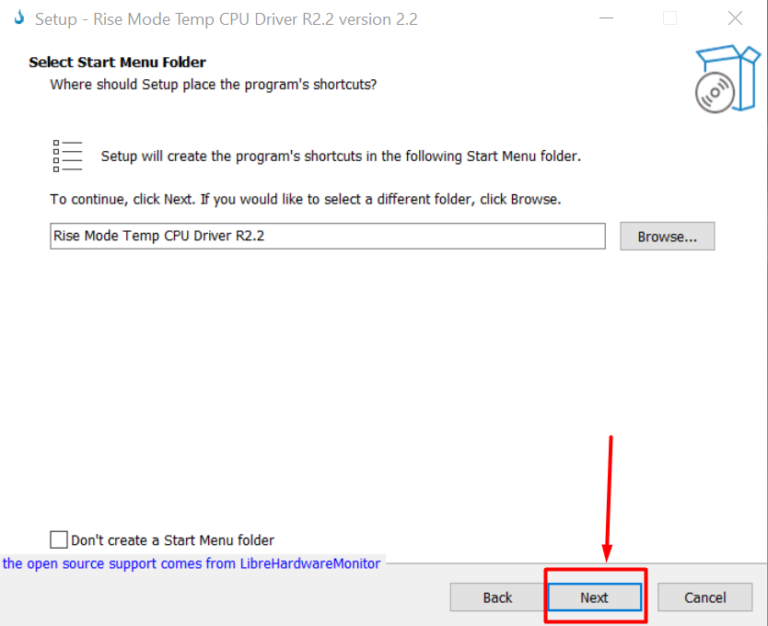
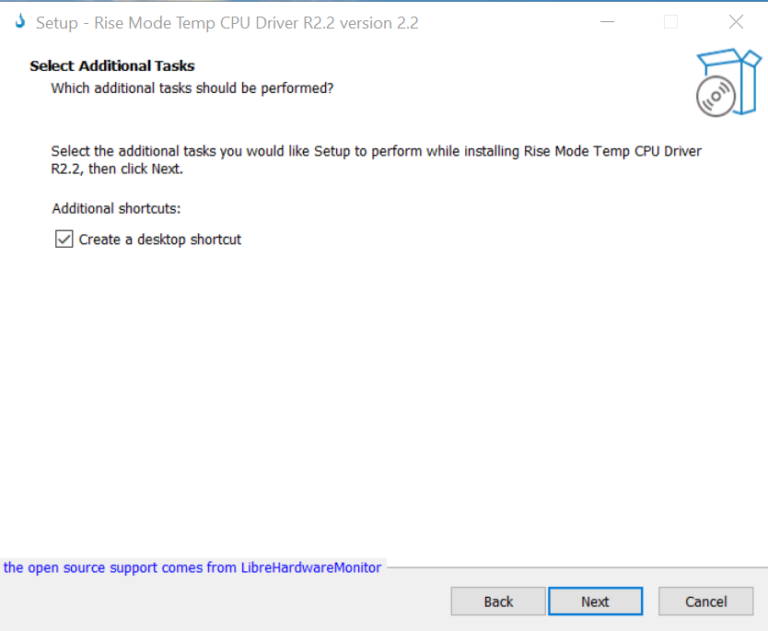
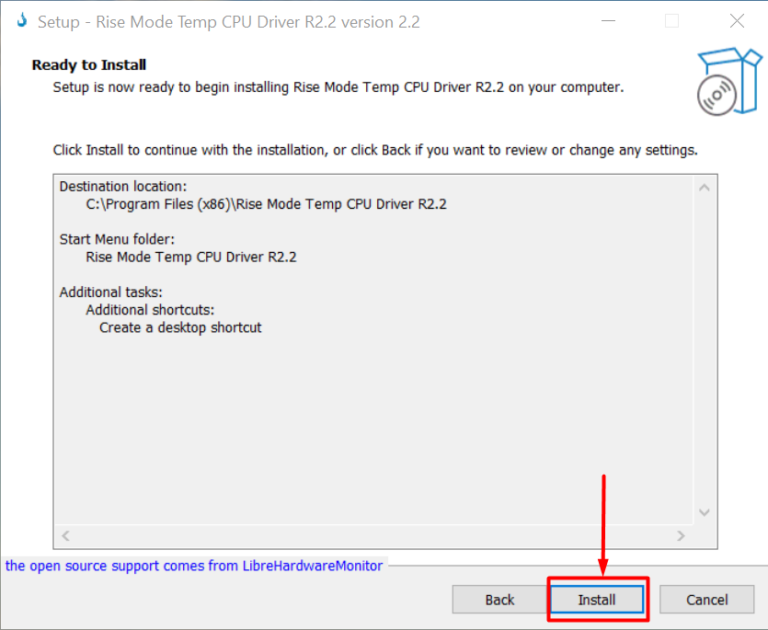
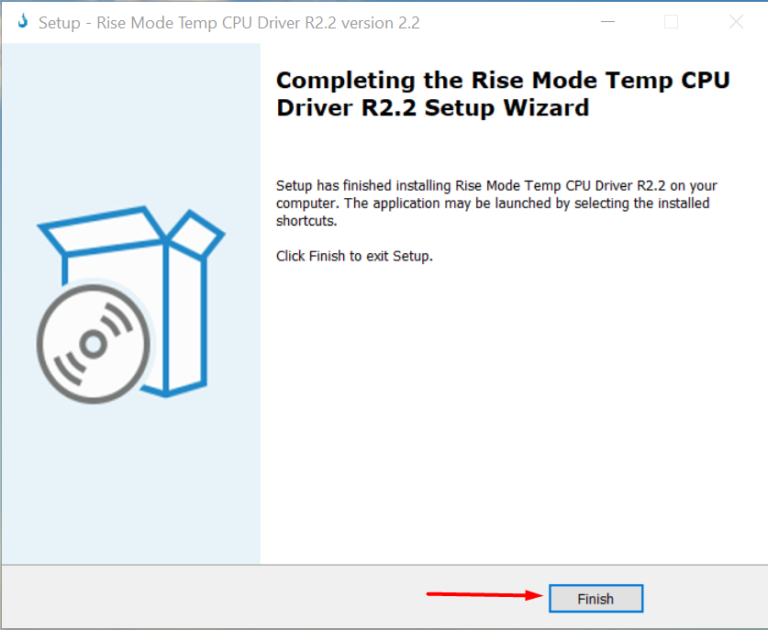
8. Then perform a clean installation of the software as described in Step No. 1.
Important!
After the entire installation, you will need to add the software folder as an exclusion in your antivirus to ensure the proper functioning of the display.
For more details on how to do this, you can check articles on Google or videos on YouTube. We will also be available in our chats to help.
Procedures that may help solve issues with the display temperature sensor:
1. If the display is not showing the temperature correctly, follow the guidance below:
2. Check the software installation: Make sure the software is properly installed on your Windows system.
3. If the program is already installed, uninstall it and reinstall it to ensure proper operation.
4. Check the motherboard’s USB connectors: If your motherboard has two internal USB 2.0 headers, connect the display to the second available header and test again.
5. Check connected peripherals: See if there are any peripherals connected to the case’s front USB 2.0 ports.
6. In some cases, devices connected to these ports can interfere with the display sensor’s operation.

 EN
EN  PT
PT  ES
ES  IT
IT  FR
FR  ZH
ZH